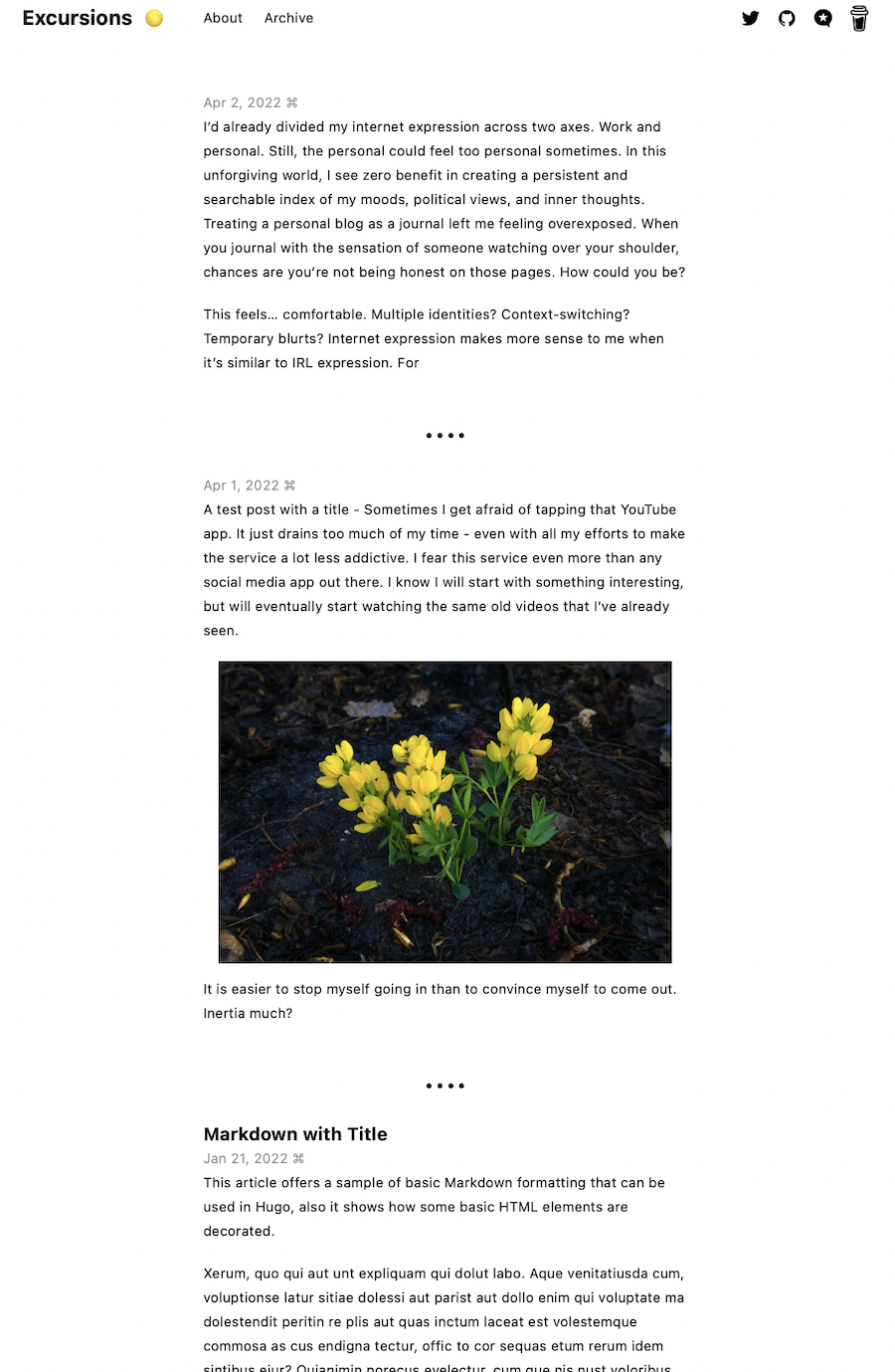
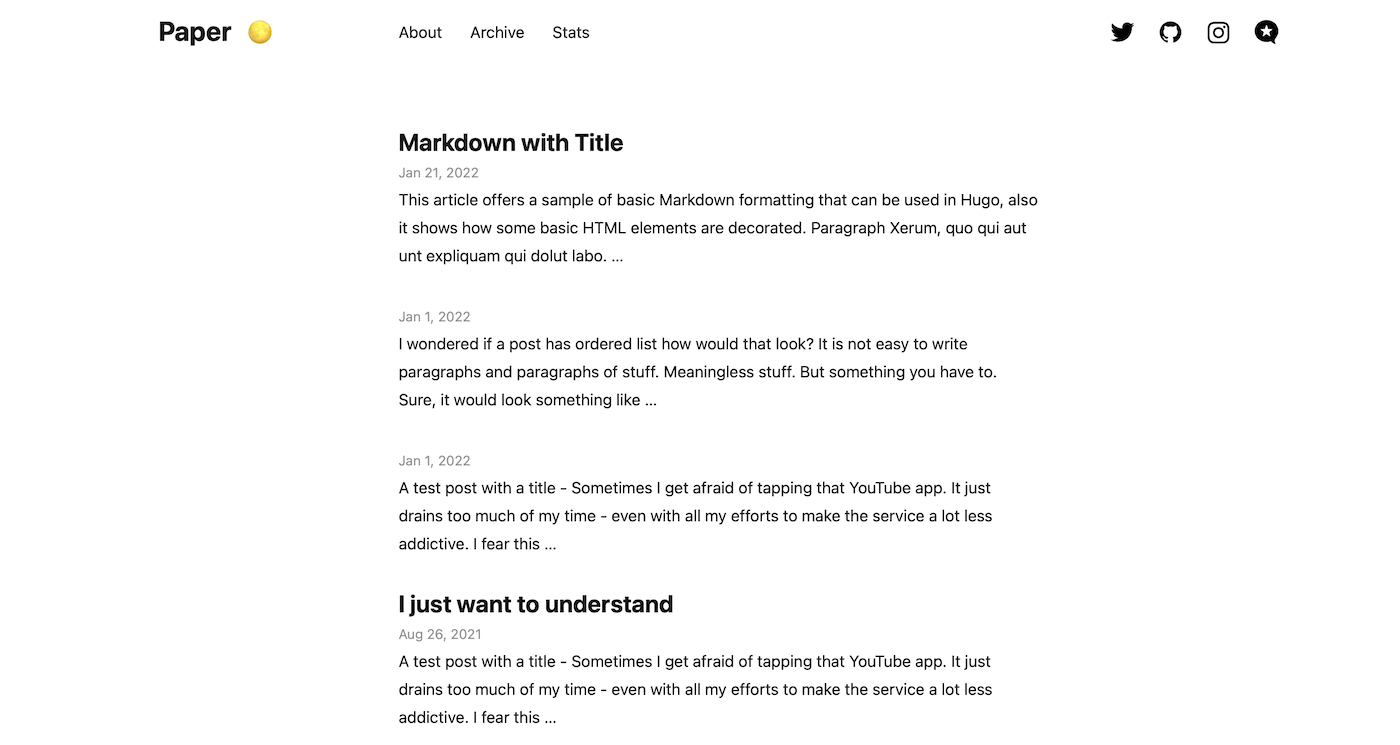
Micro.blog is a blogging platform built over Hugo, a fast static site engine. Given the way it is structured, every theme created for Hugo can potentially work with the blog hosted by Micro.blog. However, there are a few aspects added to Hugo that are specific to the way things work in Micro.blog. These need to be included as part of the themes to make the most of the features of this platform.
This article presents a non-extensive list of things that should be evaluated and included while porting a theme that is made for Hugo to Micro.blog. I have written this as I dug into the existing themes while porting Paper theme. As of this writing, a theme is considered as a plug-in in Micro.blog. Hence, many references link back to the way plug-ins work with the platform.
To reiterate, this is not an extensive list. Based on how a theme, that is being ported, is set up, one may need only a few of these steps or may need a few more than those listed below. However, this should be a good start to get a working version of the theme out for testing. If there are any issues or concerns, please reply to our email addresses.
Pre-requisites
Of course, the article assumes that you have already identified the theme that you want to port. The Hugo theme Showcase is a good place to check for all the wonderful themes available.
Though you are not required to have a detailed understanding of Hugo to port a theme, the knowledge on the below aspects should be handy.
Getting Started
The first step to get started is to access and clone the repository of the theme to be ported. You can either do this offline on your desktop or directly create a new theme in Micro.blog with mentioning the theme repository URL as Clone URL. You could then select this newly added theme as a custom theme for your test blog. This allows you to find out what breaks and also validate the additional modifications that you make to the theme.

For a theme to work, you only need a few folders and files — a typical Micro.blog theme directory structure is provided below for reference.
.
├── theme.toml
├── config.json
├── plugin.json
├── layouts
└── static
theme.toml - Contains bare meta information about the theme, like name, description, license, features, author.config.json - Contains any properties required and referenced by the template files of the theme. If the property is to be provided by the user, typically it should be taken as a setting, defined in a separate file.plugin.json - Contains meta information about the custom theme to be displayed as part of plugin repository. It also defines the feature settings that can be provided by user while plugin configuration. Refer to official guide on plug-ins for more details about this file.layouts - A folder that stores html templates that defines how views of different content types will be rendered on a website with the style.static - A folder that stores all the static content like CSS, JavaScript, etc.
You can get rid of all the other unnecessary files and folders and only keep the above-mentioned ones. This will keep the list of files in which changes are to be made manageable.
Before we move ahead, here’s a list of basic template files in the layouts folders that one would modify typically to port a theme.
/_default/list.html - A template that renders pages with multiple pieces of content, this includes the homepage. A homepage can also be independently styled by defining a template index.html in the root directory./_default/single.html or posts/single.html - A template that renders a page for a single post./_default/list.archivehtml.html - A template that renders the archive page of your website./partials/head.html - A template that defines the head section of your final rendered HTML./partials/header.html - A template that defines the header of your blog. This typically includes the site title, subtitle, navigation menu etc./partials/footer.html - A template that defines the footer of your blog. This typically includes the copyrights, author information etc./_default/baseof.html - A base template that stitches all the above defined partials together, including the main sections defined in list and single template pages above.
A theme might have all the above files, or have just a subset of these. In case a theme does not provide a particular template file, one from the basic theme (which forms the base of every theme) of Micro.blog is used.
Moreover, make sure you configure the appropriate Hugo Version to be used for your blog. Micro.blog allows two versions of Hugo to be used, 0.54 and 0.91, the latest being relatively new. Many themes may not work with the older 0.54 version of the Hugo, typically indicated by the min_version configuration in the theme.toml. If the value is above 0.54, set the Hugo version to be used as 0.91. This can be done via Design → Hugo Version.
Fix the Broken Pages
Usually, the home page might not render the list of all the posts with the ported templates. This is often due to the wrong selection of the posts. To check the selection, visit the list template mentioned above and fix the file which is fetching all the posts. It should typically look like below where you pull all the regular pages where type is defined as post.
{{ $pages = where .Site.RegularPages "Type" "post" }}
A similar fix would also need to be applied to the archive page’s template, if it is defined custom. The archive page would also need styling the components appropriately, as these are all Micro.blog specific classes, not part of the default styling of the theme.
Next, you will have to fix the templates to handle the title-less posts. Most posts published with Micro.blog are, well, micro-posts with no titles. So, wherever a Title is referenced, it should be wrapped in a {{ if .Title }} condition. So, the title reference at every place should read like below.
{{ if .Title }}
	<h2>{{ .Title }}</h2>
{{ end }}
The title-less posts might also need minor styling fixes. A typical pitfall is when a post permalink is only available with title. So, a micro-post requires a different element to carry the permalink, mostly the date-time of the post.
Another aspect that is typically broken is rendering of the taxonomy. Most of the themes in Hugo use tags to define the taxonomy. Micro.blog uses categories and hence need to fetch them differently. So at every place a template mentions tags, mostly on list template, archives template and single template, replace them with categories. This primarily involves replacing all the references of .Params.tags with .Params.categories.
With these changes handled, you should have a working website that renders correctly. However, it is still not customised to include the benefits that Micro.blog brings to the table.
Add Micro.blog Specific Tags
Micro.blog packs the key IndieWeb principles, like IndieAuth, MicroPub, Webmentions, out-of-box for all websites hosted with the platform. However, this does involve defining a few relevant aspects at appropriate places. In addition, the platform is also rich in the ways a user not adept with coding can customise their website to their liking, with support for providing custom CSS, footer and plug-ins. Enabling these also need relevant components to be defined.
The changes to be made are in two files. First, modify the partials template that defines the head section of your website, /partials/head.html.
<link rel="stylesheet" href="{{ "custom.css" | relURL }}?{{ .Site.Params.theme_seconds }}">
<link rel="me" href="https://micro.blog/{{ .Site.Author.username }}" />
{{ with .Site.Params.twitter_username }}
	<link rel="me" href="https://twitter.com/{{ . }}" />
{{ end }}
{{ with .Site.Params.github_username }}
	<link rel="me" href="https://github.com/{{ . }}" />
{{ end }}
{{ with .Site.Params.instagram_username }}
	<link rel="me" href="https://instagram.com/{{ . }}" />
{{ end }}

<link rel="authorization_endpoint" href="https://micro.blog/indieauth/auth" />
<link rel="token_endpoint" href="https://micro.blog/indieauth/token" />
<link rel="micropub" href="https://micro.blog/micropub" />
<link rel="microsub" href="https://micro.blog/microsub" />
<link rel="webmention" href="https://micro.blog/webmention" />
<link rel="subscribe" href="https://micro.blog/users/follow" />

{{ range .Site.Params.plugins_css }}
	<link rel="stylesheet" href="{{ . }}" />
{{ end }}
{{ range $filename := .Site.Params.plugins_html }}
	{{ partial $filename $ }}
{{ end }}
Next, add the below lines to the end of your base template, /_default/baseof.html just before </body>. These load the custom footer and the plug-ins defined JavaScripts.
{{ partial "custom_footer.html" . }}

{{ range .Site.Params.plugins_js }}
	<script src="{{ . }}"></script>
{{ end }}
Display Replies as Conversations
Micro.blog allows including replies made on the posts to be shown as conversations on a post page via a design setting (Design → Include conversation on post page). However, for the replies to be rendered on your post page, you need to modify your single template, /_default/single.html or posts/single.html, and add the below lines at the end.
{{ if .Site.Params.include_conversation }}
	<script type="text/javascript" src="https://micro.blog/conversation.js?url={{ .Permalink }}"></script>
{{ end }}
Summary
The difficulty involved in porting a Hugo theme to Micro.blog depends completely on the complexity of the original theme. Though it is difficult to extensively cover all the changes required, fixing the things that are broken and adding support for the Micro.blog specific features and tags is all it takes. This article attempted to list down the majority of the identified changes.
In the future, the way of including the Micro.blog specific changes may be simplified significantly. This article would be updated accordingly to reflect the same. However, the awareness of the changes being done allows one to appreciate the hidden complexity and beauty of the platform that is Micro.blog.
PS: This post was written for, and is also published at Custom by Miraz Jordan - a website that intends to “develop reference information and tutorials to help people customise themes in hosted Micro.Blogs”.